Support
How to use Cliora
01 Getting started
No account needed
There's no sign-up. Open Cliora and add your first contact with a name, company and status (New, Hot, Warm, Cold, Customer or Lost). Once you set a reminder, it shows up on the Today screen.
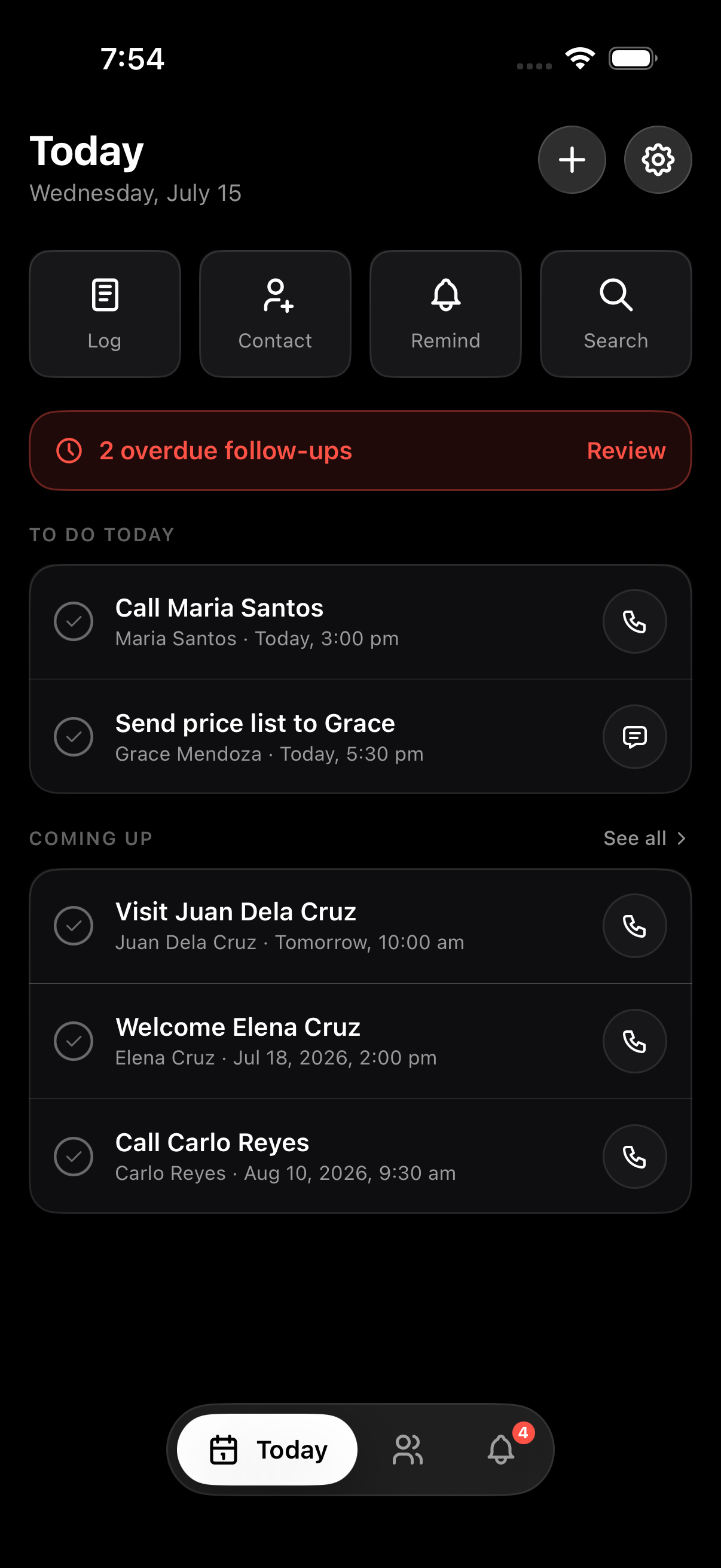
Today
Today's follow-ups, with anything overdue at the top.
02 Contacts and statuses
Six statuses
Every contact has one status: New, Hot, Warm, Cold, Customer or Lost. Only Hot (red) and Warm (amber) are shown in colour. The "Follow-up" filter on Contacts isn't a status. It lists everyone who has a reminder coming up.
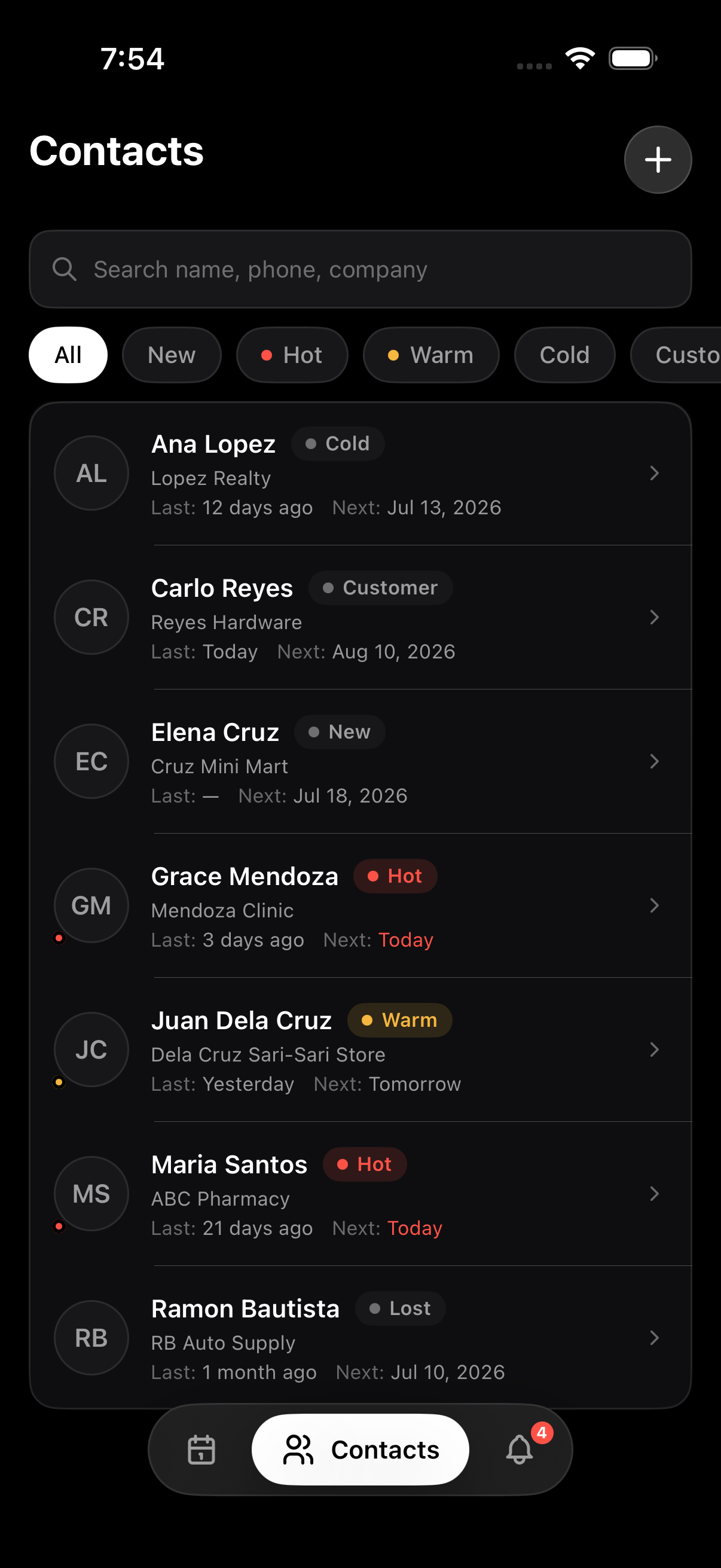
Contacts
Filter by status, or by who needs a follow-up.
03 Logging a visit or call
Log it right after the visit
Tap Log on a contact, or tap + on Today and choose Log a visit. Pick what happened (a call, visit or meeting) and type a note. It's saved to that contact's history, so next time you can see what was said before you call.
04 Reminders
Every reminder is tied to a contact
Set a date and time on any contact and Cliora schedules a notification on your phone. It works without internet. Reminders are grouped into Today, Overdue, Upcoming and Done. In Settings you can turn on a daily summary at a time you choose, and quiet hours so alerts don't come in after work.
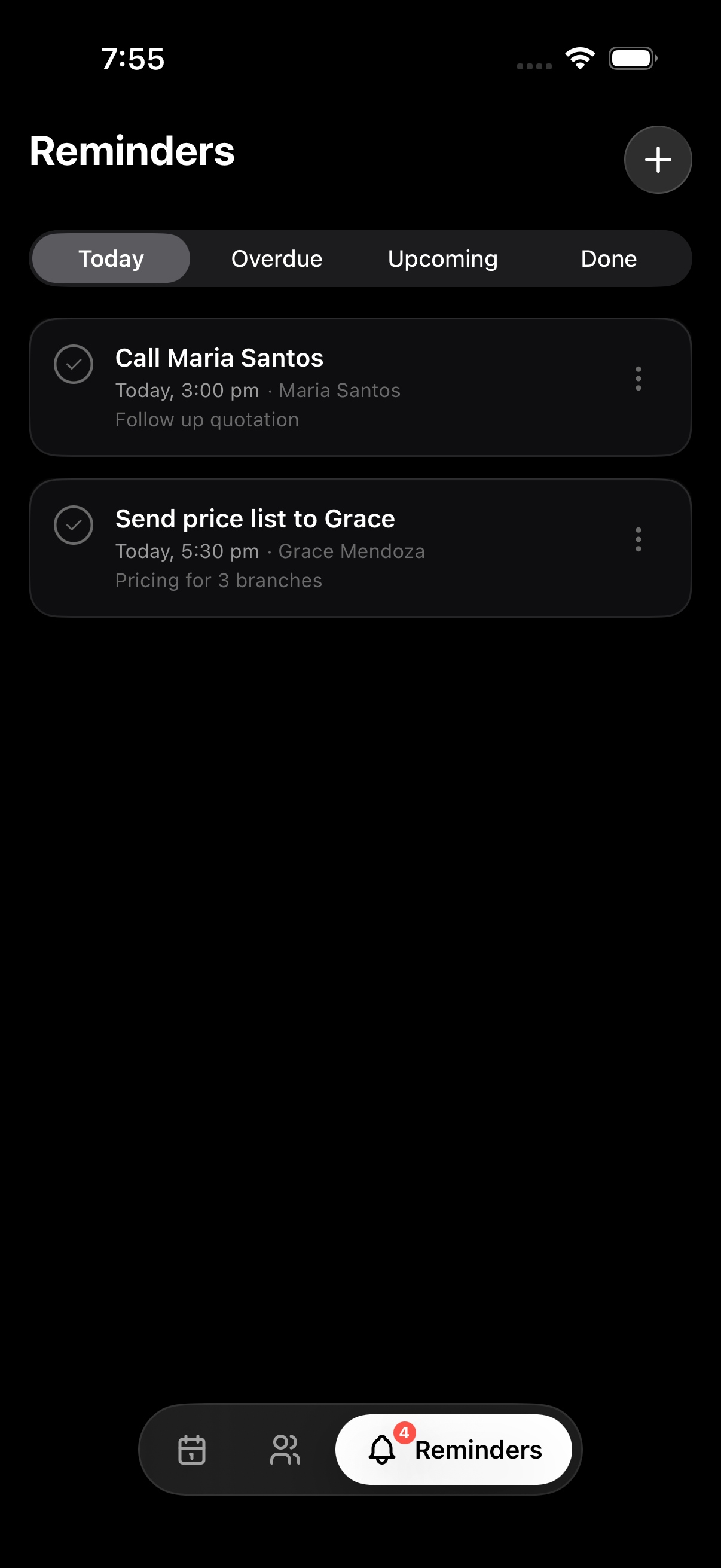
Reminders
Today, Overdue, Upcoming and Done.
05 Backup and restore
Save your data to a file
In Settings, tap Back up to save all your contacts, logs and reminders to one file, and choose where to keep it. Use Restore from file to bring it back on the same phone or a new one.
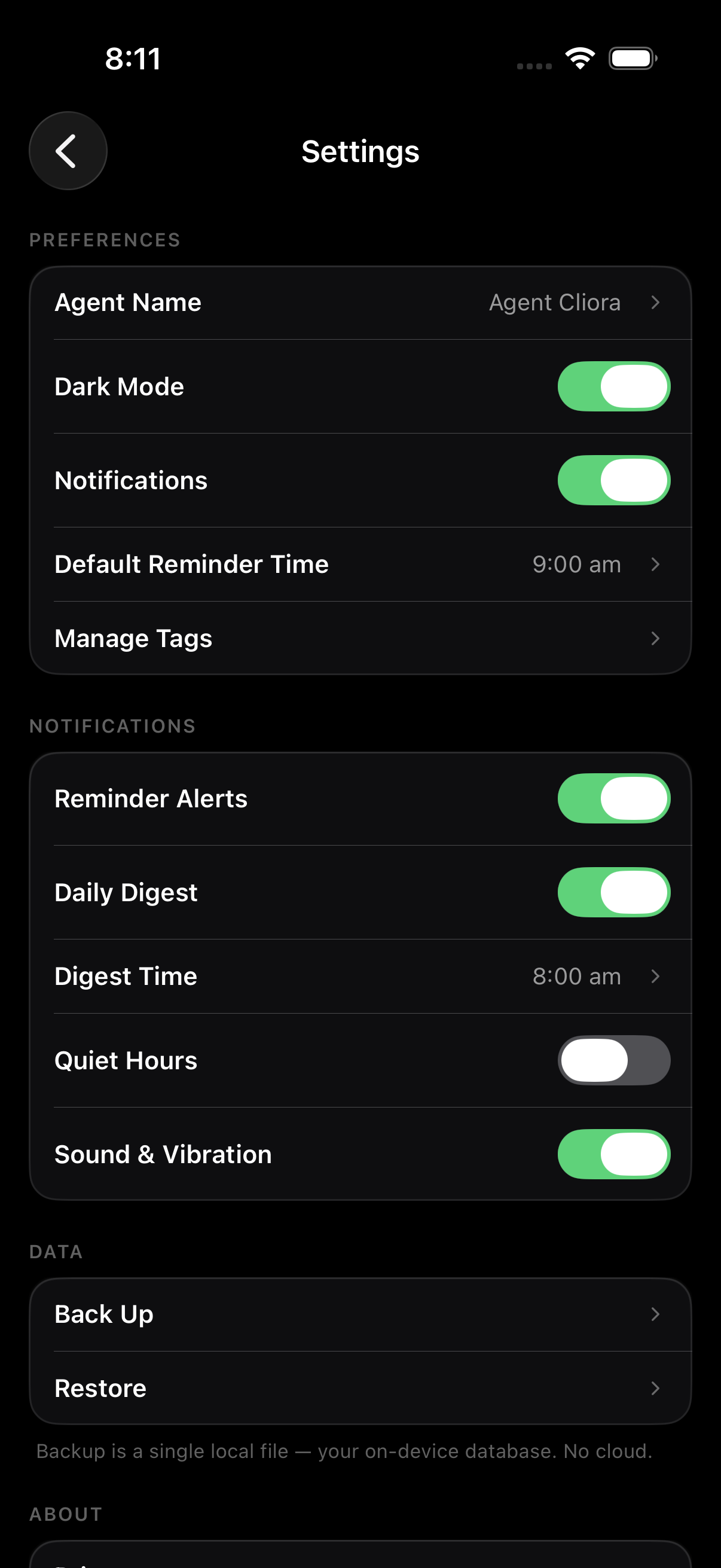
Settings
Your name, reminder defaults, notifications, backup and restore.
Good to know
Cliora doesn't import or export CSV files. The backup file is the only way to move or keep a copy of your data, and since Cliora doesn't sync to any cloud, it's the only copy outside your phone.
06 Remove Ads
Pay once
Remove Ads is a one-time purchase through Google Play or the App Store. You'll find it at the top of Settings.
- Purchase: open Settings, tap Remove ads and confirm with Google Play or the App Store.
- Restore on a new phone: open Settings and tap Restore purchase.
- Refunds: handled by Google Play or Apple. Cliora doesn't process payments.
- After you buy it, the ad at launch is gone and the app opens without internet. All other features were already free.
Still stuck?
Email us at cliora.support@juanlobby.com. Please include your phone model, OS version, app version (at the bottom of Settings) and what you were trying to do.